 CourseGlade
 Learning mode & progress
How students take a course in the distraction-free learning view, mark items complete, and track progress.
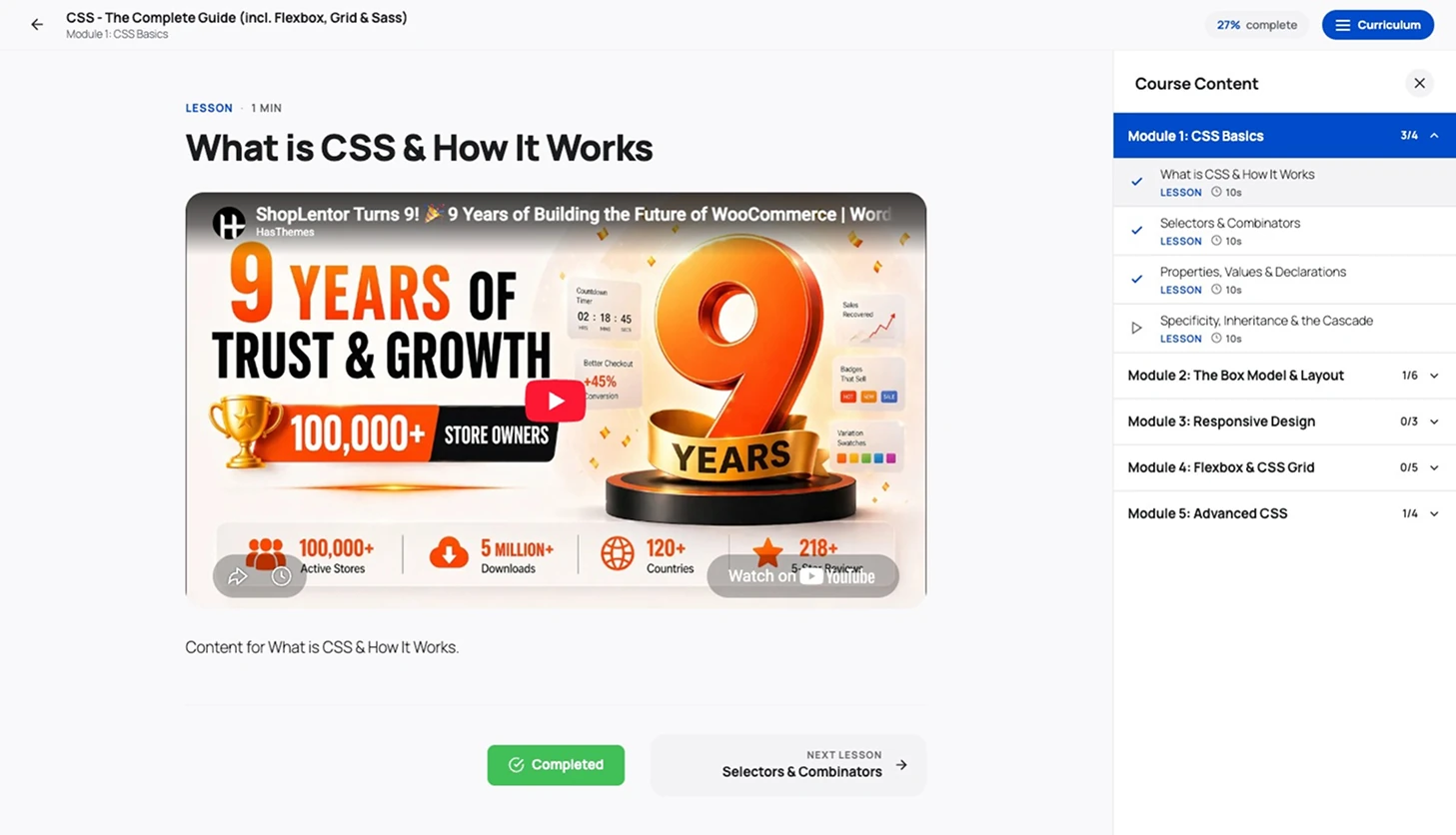
When a student opens a lesson, CourseGlade switches to learning mode — a focused, full-screen view built for getting through the material.
What learning mode includes
- A Course Content sidebar (button Curriculum on mobile) listing every section with a completed / total count and a tick on finished items
- The lesson content — video, audio, text, and Downloadable Resources — front and center
- A Q&A Discussion area under the lesson, with an Ask a Question button
- A Back to Course link and a progress pill showing “{percent}% complete” in the header
Learning-mode pages are set to noindex, so course content stays out of search results.
Moving through a course
The footer has three controls:
- Previous {Lesson/Quiz} and Next {Lesson/Quiz} to navigate
- A center Mark as complete button that switches to Completed once done (empty lessons complete automatically)
Not-yet-enrolled visitors see Enroll to continue instead of the complete button. On the last item, the Next slot becomes a Finish → Back to course card.
Progress tracking
Progress is recorded per student, per item (when Progress Tracking is on in Settings → Course):
- Completing a lesson or passing a quiz marks the item done and updates the sidebar count
- The header progress pill and the student dashboard show overall course progress
- Reaching 100% shows a Certificate button in the header (with the Pro Certificates addon) and sends the completion email
Locked content
If the Pro Content Drip addon or sequential learning is on, locked items show a Locked state with the unlock condition. Trying to open one shows “This content is locked. Please complete the previous lessons first.”