 CourseGlade
 Student dashboard
The unified dashboard and its tabs for students and instructors.
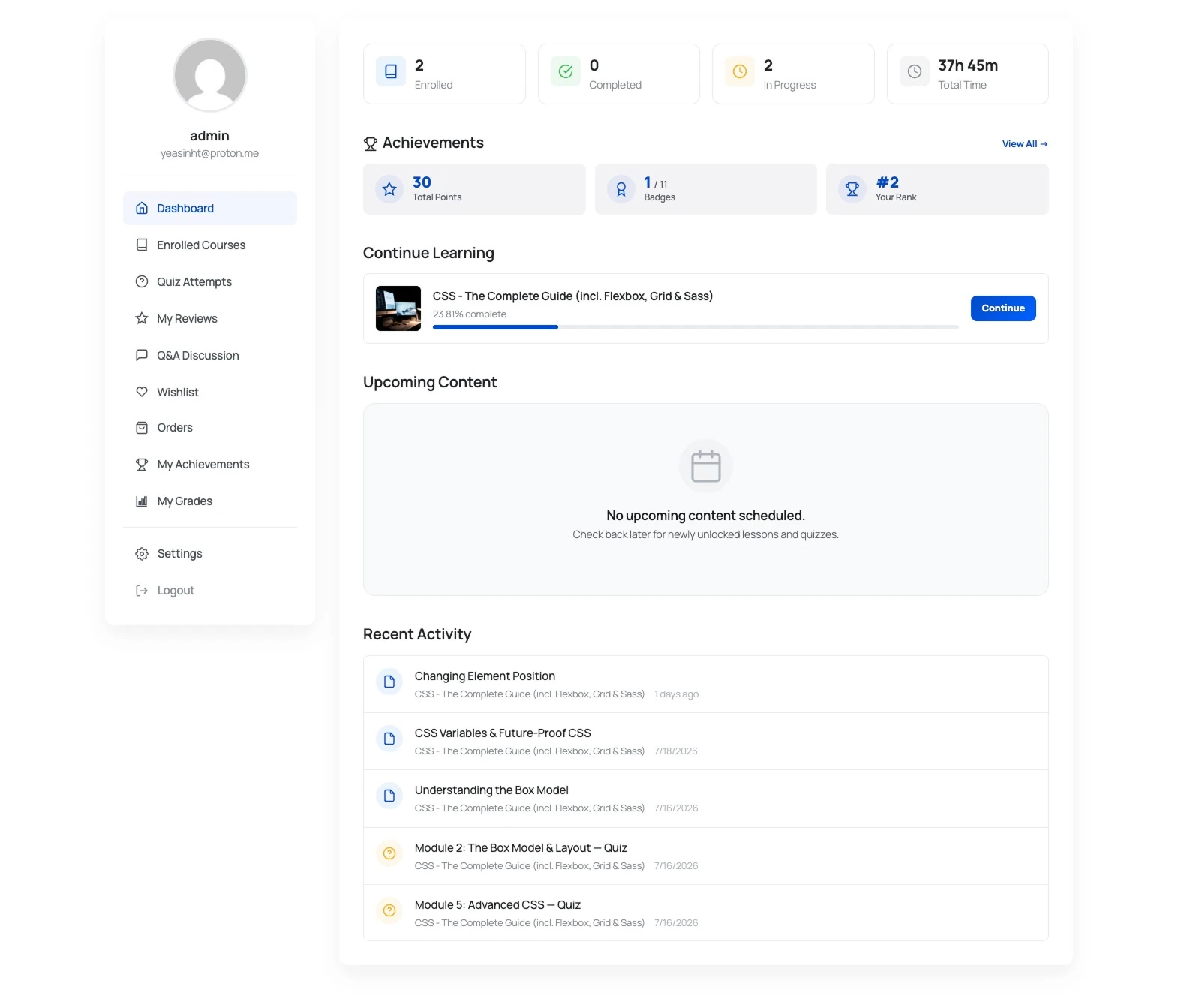
The dashboard is one page ([courseglade_dashboard]) whose tabs adapt to the logged-in user’s role.
Student tabs
- Dashboard — an activity and progress overview
- Enrolled Courses — every course the student is in, each with a Continue button and progress
- Activity — a feed of the student’s own actions: enrollments, lesson and course completions, quiz attempts, and (with the matching Pro addons) assignment submissions and badge events
- Quiz Attempts — past attempts and scores (shown when quizzes are enabled)
- My Reviews — reviews the student has written, editable and deletable
- Q&A Discussion — the student’s questions and replies
- Wishlist — saved courses, each with a Remove action (shown when the wishlist is enabled)
- Orders — purchase history, each with a printable invoice (shown when orders are enabled)
- Settings — account and profile settings, including display details and custom avatar upload. JPG, PNG, WebP, and GIF images up to 2MB are accepted. If no custom avatar is uploaded, CourseGlade uses Gravatar when available and otherwise shows the default profile placeholder; removing a custom avatar restores that fallback.
Instructor tabs
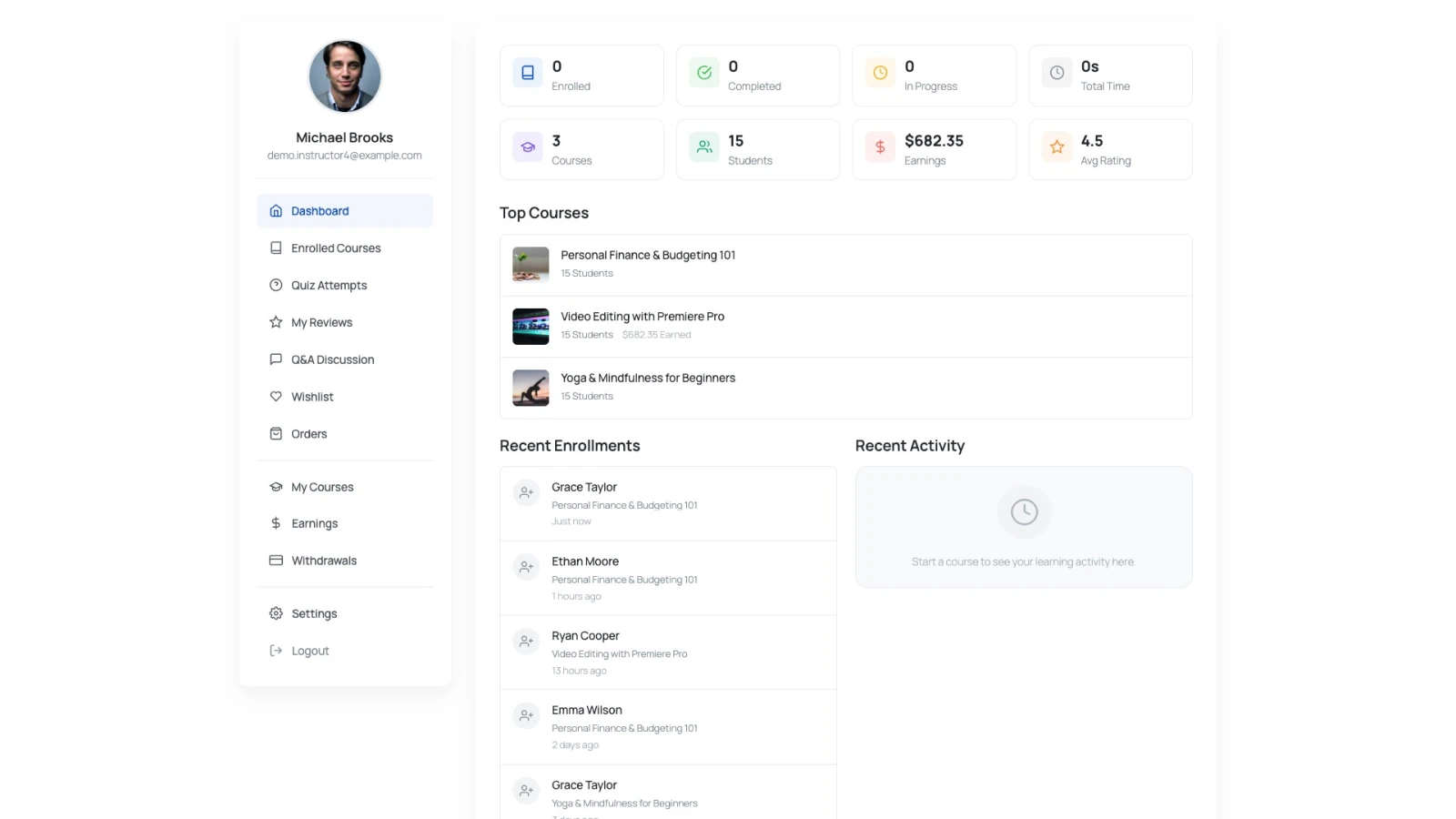
Instructors also get a teaching section:
- My Courses — the courses they teach
- Earnings — summary cards for Total Earned, Available Balance, Pending, and Withdrawn, plus earnings history
- Withdrawals — request and track payouts
Pro tabs
Two tabs appear only with the matching Pro addon active:
- My Achievements — points, badges, and badge progress toward the next one (the Pro Leaderboard & Gamification addon)
- My Grades — course grades and GPA (the Pro Gradebook addon)
The admin side
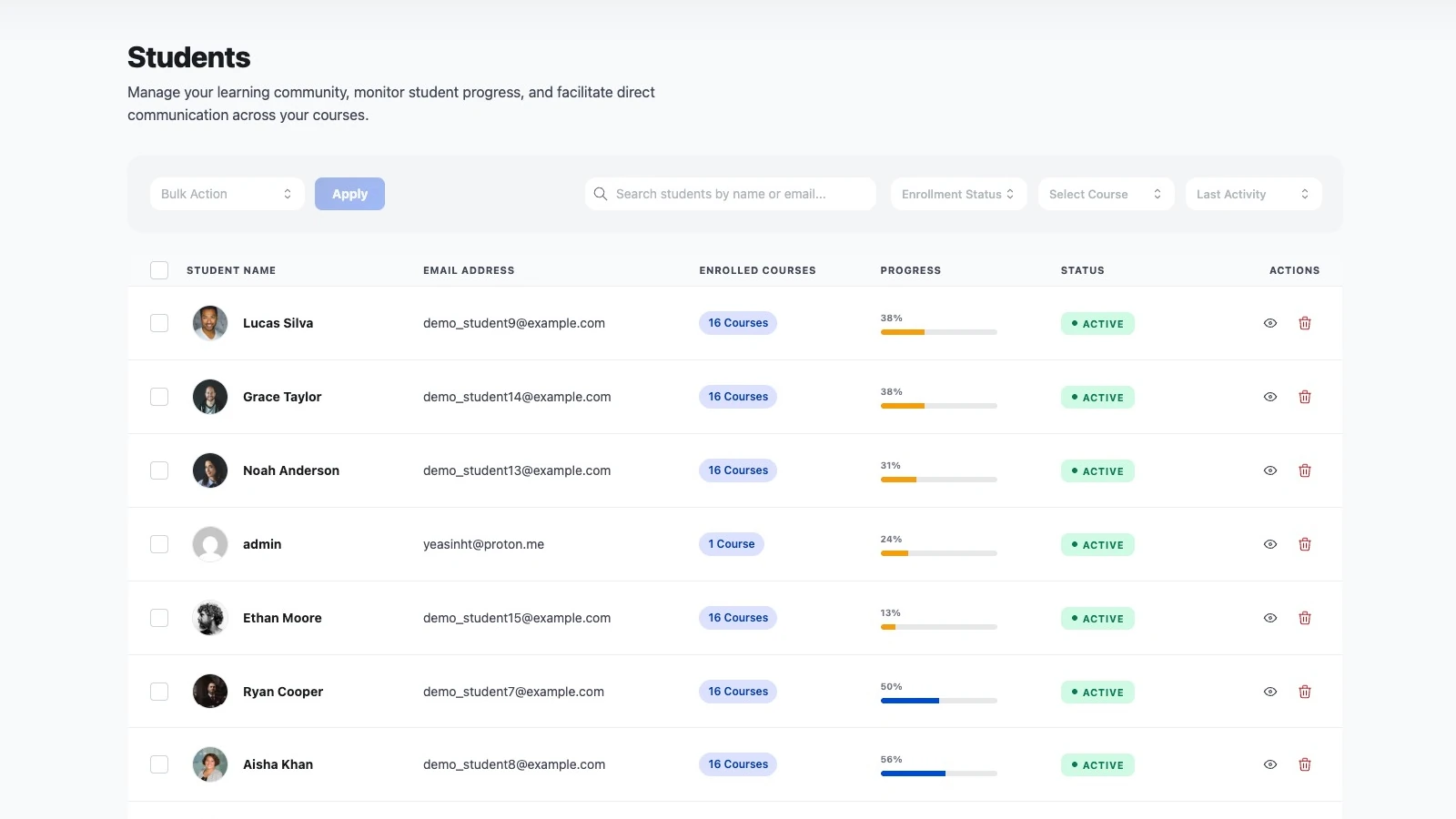
The dashboard is what students see. To manage them yourself, go to CourseGlade → Students — search by name or email, filter by enrollment status, course, or last activity, and open a student to view their enrollments and progress.
Notes
- The dashboard is created on install; you can move or restyle the page freely.
- A logged-out visitor sees a prompt to log in.