 CourseGlade
 Video lessons
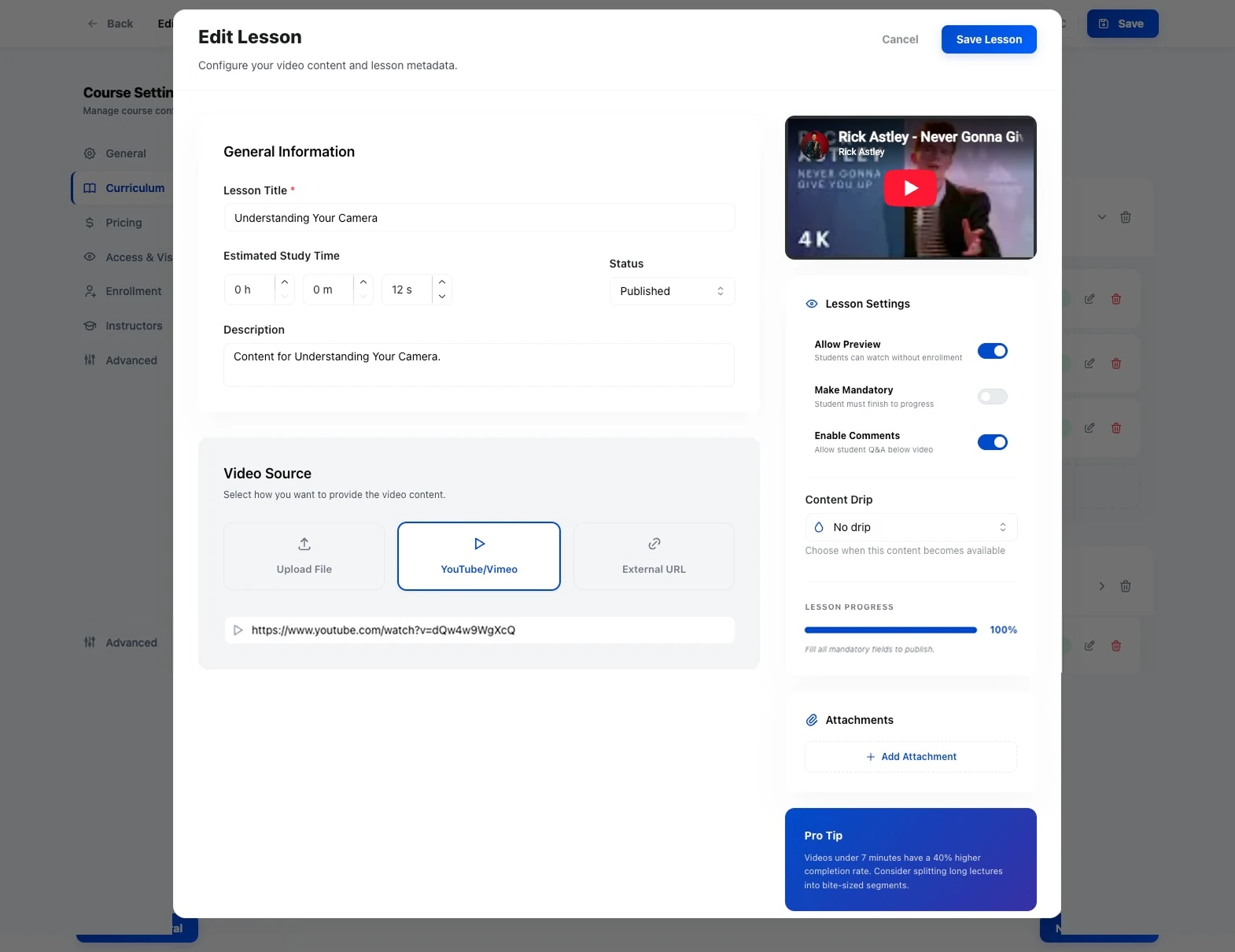
Add video to lessons from YouTube, Vimeo, or a direct video file.
Lessons play video from a single video URL you set in the lesson editor.
Supported sources
In the Video Lesson Editor, choose a Video Source:
- YouTube — paste a
youtube.comoryoutu.belink; it embeds as a YouTube player (with related videos off and minimal branding) - Vimeo — paste a
vimeo.comlink; it embeds as a Vimeo player (title, byline, and portrait hidden) - External URL / Upload — a direct video file URL (
.mp4,.webm,.mov) plays in the native HTML5 player; uploads go up to 500MB
YouTube, Vimeo, or a direct file only. The lesson player detects YouTube and Vimeo links and otherwise treats the URL as a direct video file. Links from other hosts (for example Wistia or Loom share pages) won’t embed — use YouTube, Vimeo, or a file URL.
Written content and attachments
Below the video, add rich-text content and downloadable files (shown as Downloadable Resources). A lesson can be video-only, text-only, or both — an empty lesson auto-completes when the student opens it.
Lesson settings
Three toggles in the editor:
- Allow Preview — students can watch without enrolling
- Make Mandatory — the student must finish it to progress
- Enable Comments — shows Q&A below the video
How students watch
Video plays inside learning mode — a distraction-free view with the curriculum sidebar and Q&A below the lesson.
Tips
- For private courses, use unlisted YouTube or domain-restricted Vimeo so links can’t be shared outside your site.
- Keep videos short — under seven minutes has meaningfully higher completion.