 CourseGlade
 Payment gateways
Stripe, WooCommerce, manual/offline, and free enrollment — how each behaves.
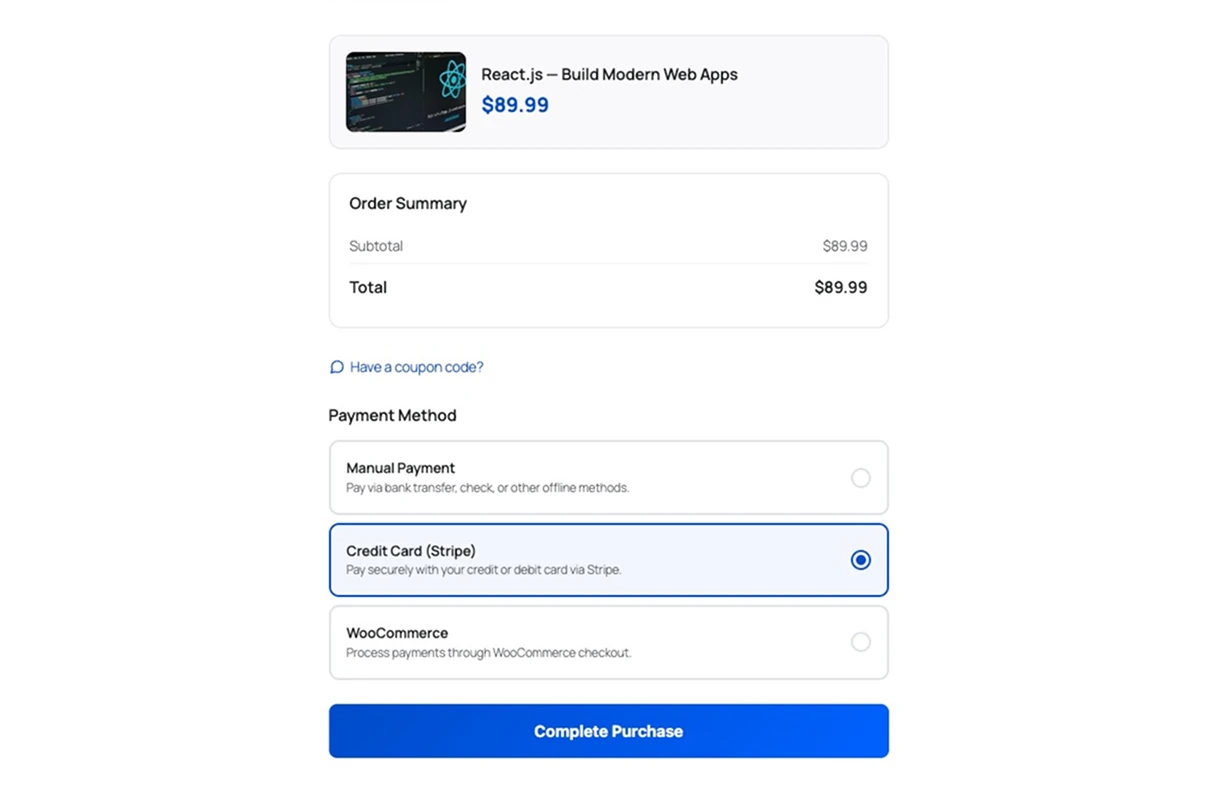
CourseGlade includes several ways to charge, all in the free plugin. Enable and configure them under CourseGlade → Settings → Payments.
Stripe
Native Stripe Checkout — cards and wallets, with webhook confirmation. See the dedicated Stripe setup guide.
WooCommerce
Route sales through your WooCommerce store and any WooCommerce gateway. See WooCommerce integration.
Manual / offline
The Manual / Offline Payment card (“Bank transfer, check, cash, or any other offline method”) has three fields:
- Title — shown to customers at checkout
- Description — the short line next to the option
- Payment Instructions — shown after the order is placed (bank details, mailing address, etc.)
A manual order is created on hold and grants access provisionally. When the money arrives, open the order and click Confirm Payment to complete it.
Free enrollment
The Free Enrollment gateway is always available for zero-price courses — the student enrolls in one click with no payment step. It also kicks in automatically when a 100%-off coupon brings a paid course to $0.
Choosing a gateway
| Situation | Use |
|---|---|
| Courses are your main product | Stripe — fewest moving parts |
| You already sell in WooCommerce | WooCommerce gateway |
| You take bank transfer or cash | Manual / offline |
| Free or preview courses | Free enrollment |
You can enable more than one at a time; students pick at checkout. Currency (default currency, symbol position, decimals) is set in the Currency card on the same tab.