 CourseGlade
Content Bank addon
One shared library of lessons, quizzes, questions, and assignments you can reuse across courses.
The Content Bank addon (Pro) keeps your lessons, quizzes, questions, and assignments in one place, so you can reuse them in more than one course instead of copying them.
Where to find it
With the addon active, CourseGlade → Content Bank appears in the admin menu. Without the addon, the menu item is not shown.
The page lists everything you can edit in one table, with the item’s Title, Type, Details, and Used in. Search by title, narrow the list with the Type filter (questions, video, audio and text lessons, quizzes, and assignments) or the Any usage filter, and page through the results. New content creates an item directly in the bank.
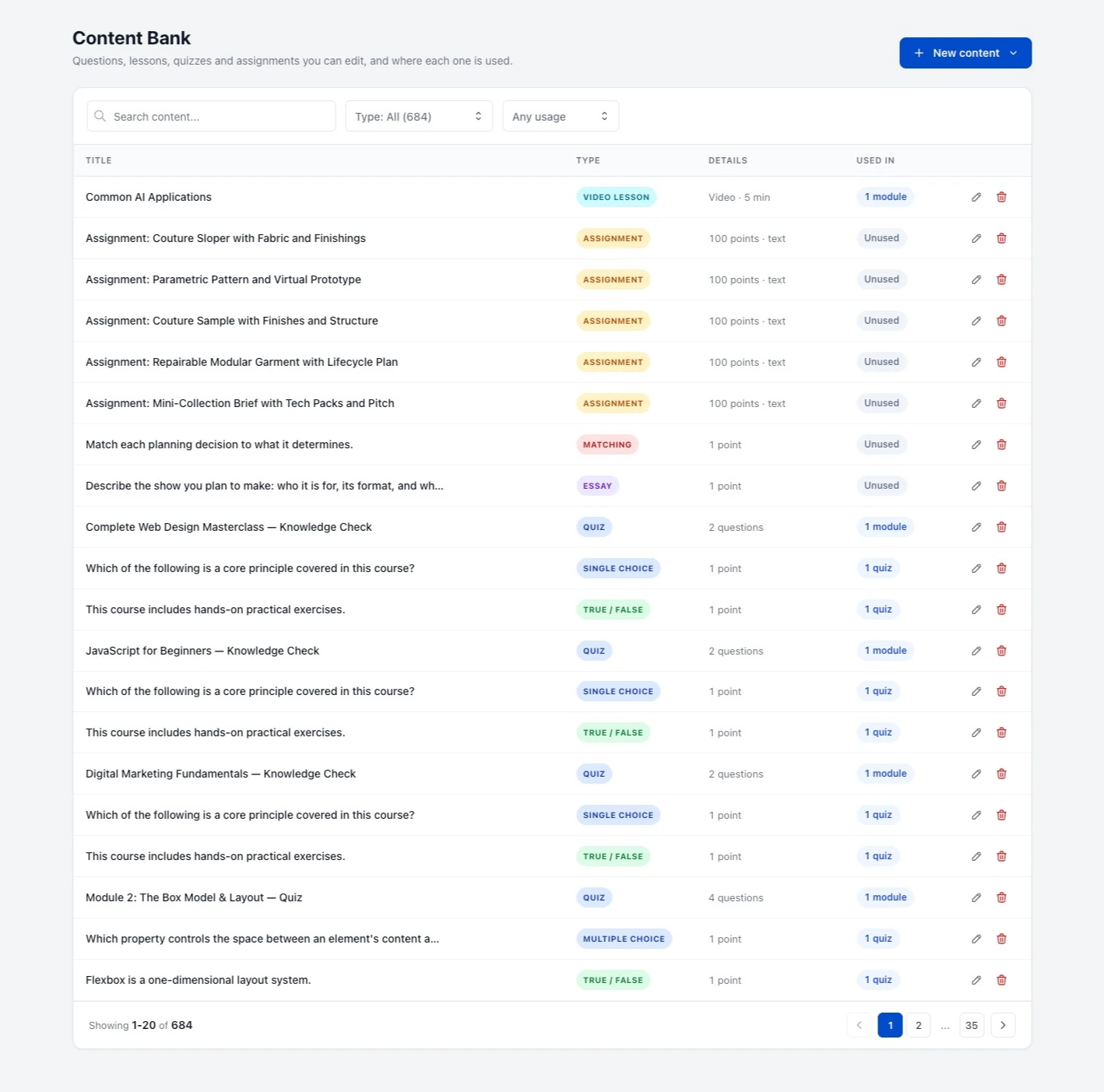
What goes in the bank
- Lessons, quizzes, and assignments you create in a course appear in the bank, ready to reuse in other courses.
- Questions you write in a quiz are collected in the bank, ready to use in other quizzes.
- Assignments can also be written in the bank without belonging to any course, then attached to a course later.
The Used in column shows where each item sits. An item marked Unused is not in any course or quiz.
Reuse content in another course
Add an existing item to a course from the bank instead of creating it again. The item is shared: it is one item used in several courses, not a copy for each.
Content Drip rules belong to the course, so a shared lesson can release on a different schedule in each course.
Reuse questions in a quiz
When you add questions to a quiz, pick Add from the question bank. You can search the bank, filter by question type, and select one or several questions. Questions already in the quiz are not offered again.
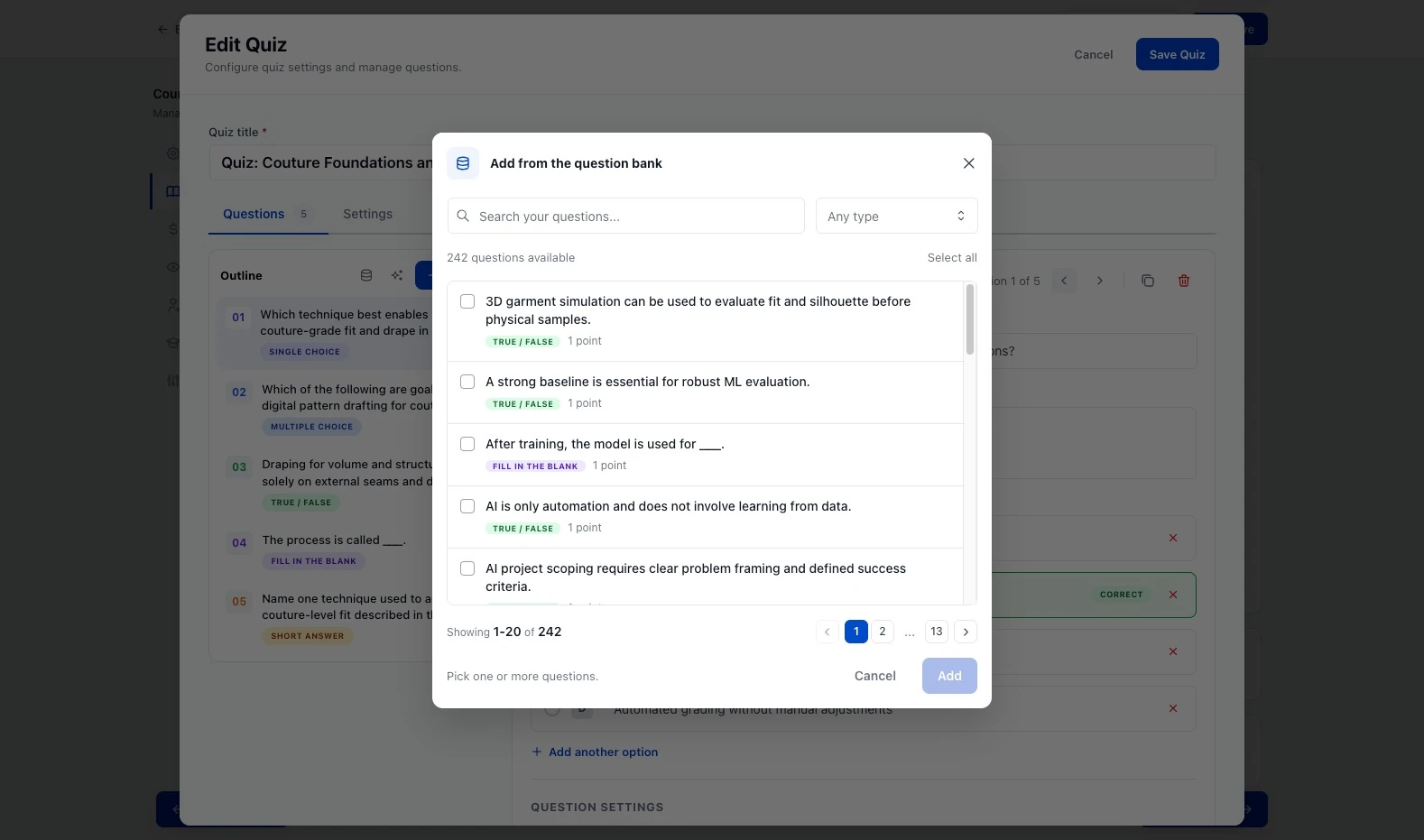
A quiz can also draw a random subset of its questions, so students do not all see the same set.
Removing content from a course
With Content Bank active, removing an item from a course detaches it. The item stays in the bank, and any other course that uses it is unaffected. A quiz removed from its course can be added back from the bank.
An item that is not used anywhere can be deleted from the bank. Deleting it cannot be undone.
Without Content Bank, removing content from a course deletes it if nothing else uses it.
Progress and reports
A course’s progress counts only the content still in that course, so detaching an item does not skew a student’s progress.
For quiz question types and grading, see Quiz question types and Quizzes and grading.